SyngHub Documentation
The Pricing Plans & Comparison Table
The Pricing Plans & Comparison Table Module is designed to provide a flexible and conversion-focused pricing solution for HubSpot CMS.
Its objective is to help businesses clearly present static pricing plans and feature comparisons with optional monthly/yearly toggling, while improving pricing clarity, user trust, and conversion rates. This module eliminates the need for multiple pricing layouts and ensures a structured, consistent pricing presentation across the website.
SyngHub Documentation
SyngHub Advanced Countdown Help Guide
Learn how to configure and customize the Advanced Countdown module for HubSpot. This guide covers countdown types, layout options, styling controls, animations, CTA buttons, social icons, expiry actions, and best practices to help you create engaging, conversion-focused countdown experiences.
Overview
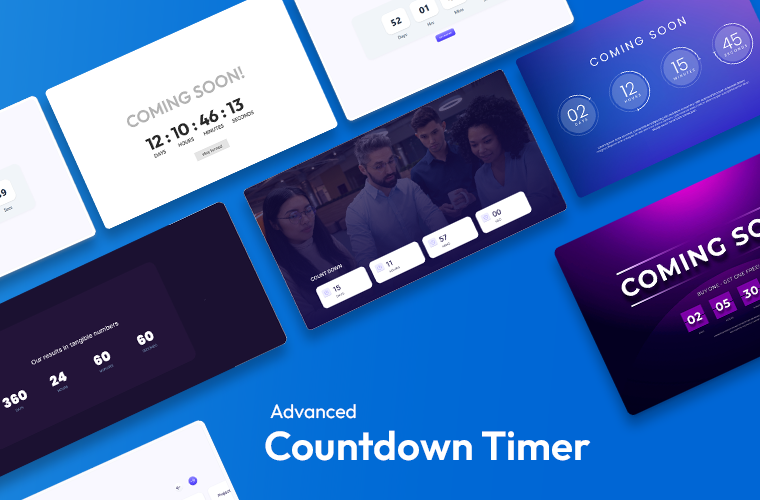
Advanced Countdown is a customizable HubSpot countdown timer module designed to create urgency and improve engagement across websites, landing pages, and marketing campaigns. It supports both fixed-date and evergreen countdowns, along with flexible options for layout, styling, animations, CTA buttons, social icons, and expiry actions.
Countdown Types
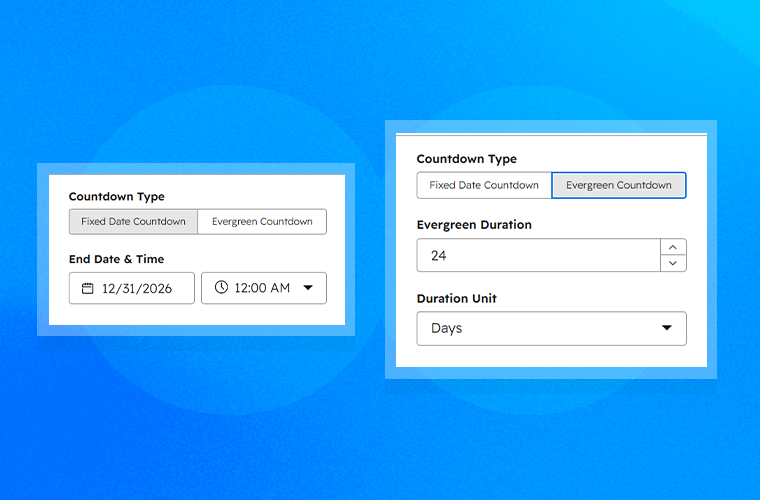
Fixed Date Countdown
Fixed Date Countdown uses a specific date and time as the target end point. This option is ideal when you want every visitor to see the same countdown for a launch, event, promotion, or deadline.
Evergreen Countdown
Evergreen Countdown creates a personalized countdown for each visitor based on the selected duration. This option is useful for automated campaigns, lead generation funnels, and limited-time offers that need a unique timer experience.
Counter Settings
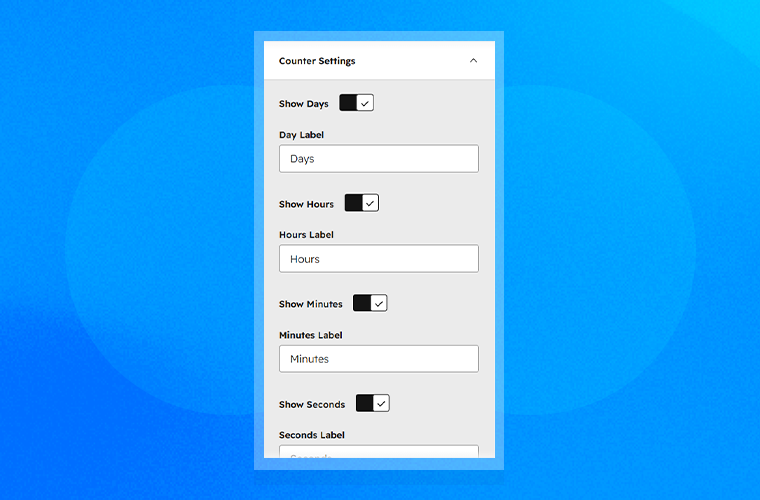
Counter Settings allow you to control which time units are displayed in the countdown. You can choose to show days, hours, minutes, and seconds, and you can also enable leading zero formatting for a cleaner visual appearance. Each label can be customized to match your campaign style and messaging.
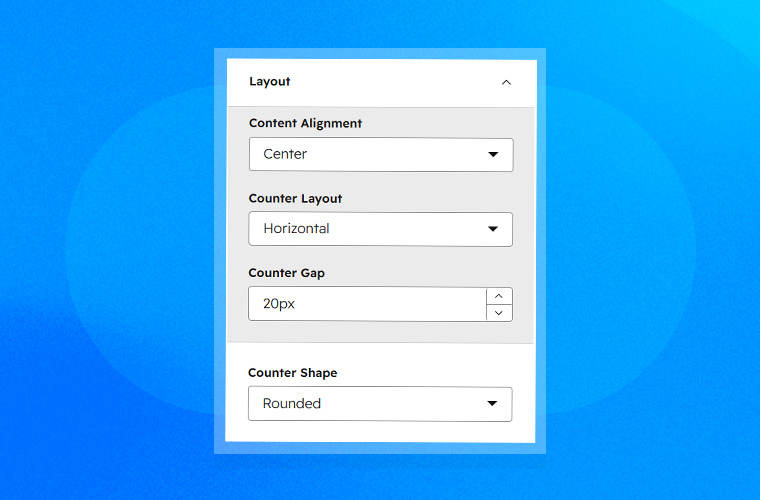
Layout Options
Horizontal Layout
The horizontal layout displays the countdown boxes in a single row, making it a strong choice for hero sections and landing pages where space is available.
Vertical Layout
Vertical Layout stacks the countdown boxes one below another, which works well in sidebars or narrow content areas.
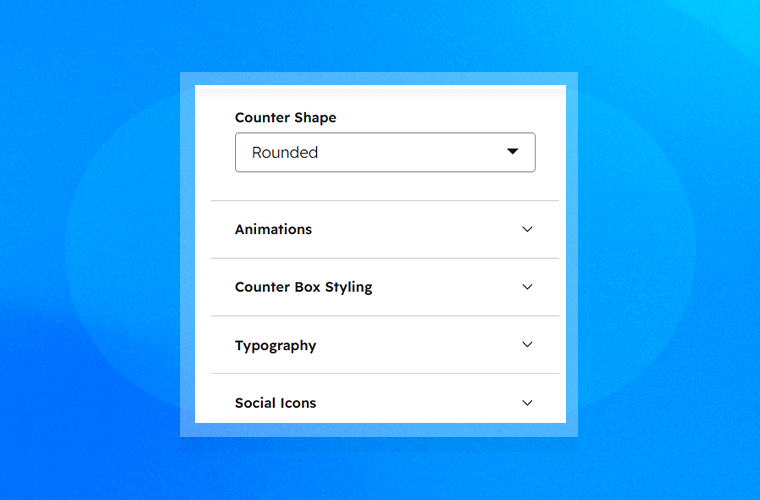
Styling Options
Counter Shapes
You can choose from multiple counter shapes, including Rounded, Square, Circle, and Pill, to match the design style of your page.
Counter Box Styling
Counter Box Styling lets you customize the background color, border, border radius, and shadow effects of each countdown box. These options help you create a more polished and branded appearance.
Typography
Typography settings allow you to control the font family, font size, font weight, color, and spacing for both the countdown numbers and labels, giving you full control over the visual presentation.
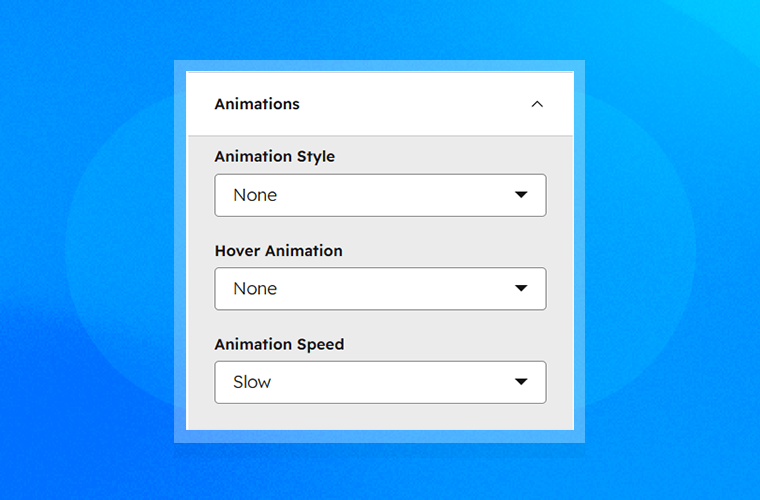
Animation Effects
Animation Effects add movement and visual interest to the countdown boxes. You can choose from options such as None, Pulse, Bounce, Float, Zoom, Fade, and Slide, and adjust the animation speed to slow, normal, or fast depending on your design preference.
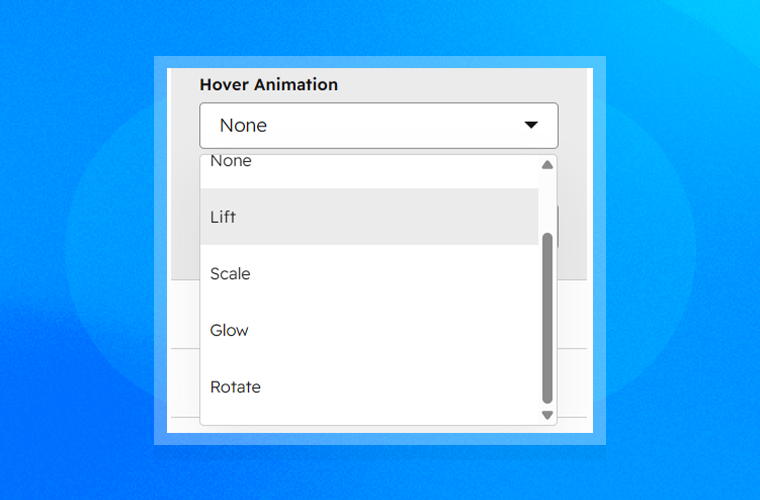
Hover Effects
Hover Effects enhance user interaction by adding motion or emphasis when a visitor moves their cursor over the countdown boxes. Available hover styles include None, Lift, Scale, Glow, and Rotate.
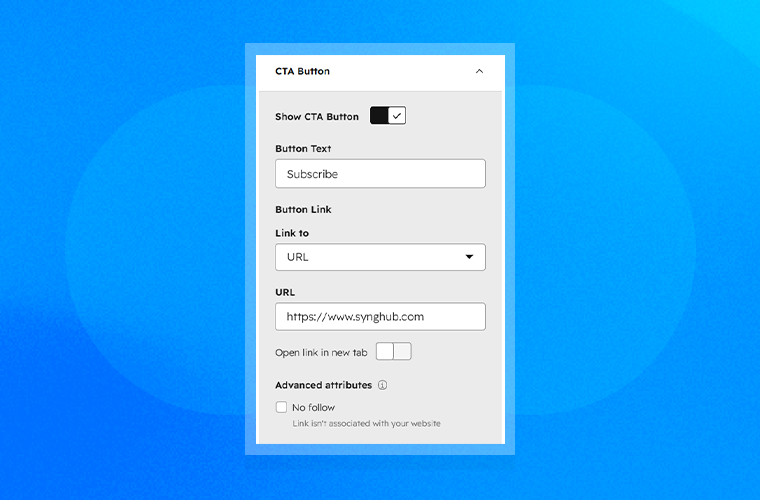
CTA Button
The CTA Button section allows you to add a call-to-action below the countdown. You can customize the button text, link, open-in-new-tab behavior, colors, hover colors, and border radius to create a strong conversion-focused action point.
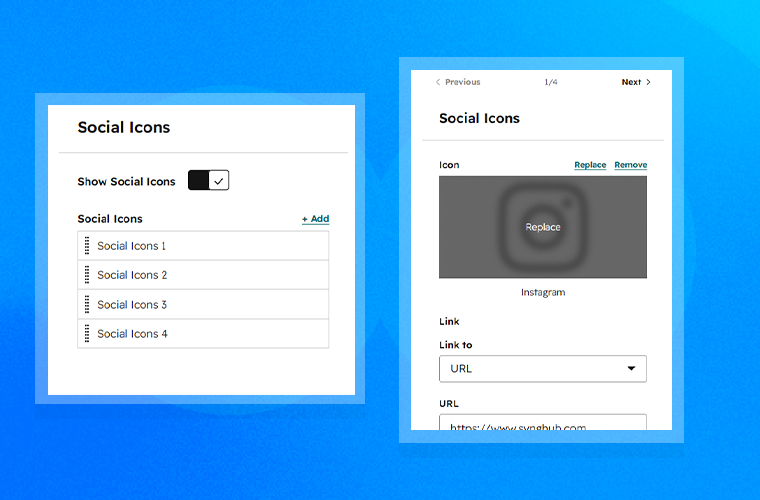
Social Icons
Social Icons can be displayed below the countdown to help users connect with your brand on different platforms. You can add multiple icons, choose custom icon styles, and configure external links with optional new-tab behavior.
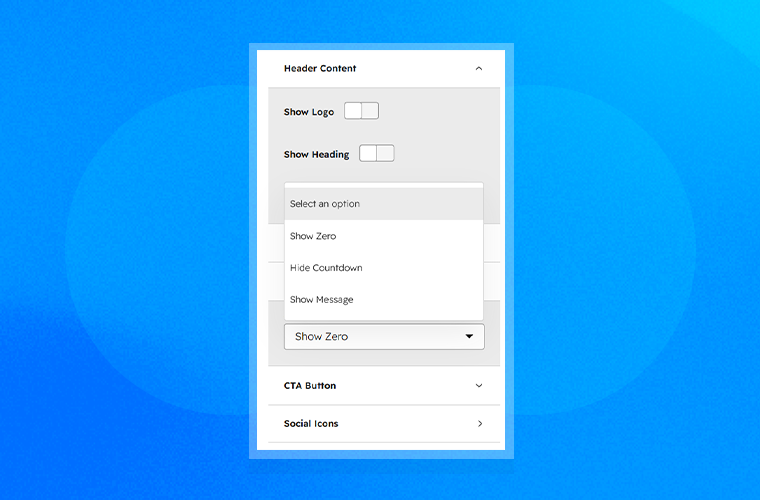
Expiry Actions
Expiry Actions define what happens when the countdown reaches zero. You can choose to show zero values, hide the countdown completely, or display a custom message after expiration depending on your campaign goal.
.png?width=153&height=152&name=Icon%20(1).png)
Expert Assistance
Get direct support from our experienced support team
.png?width=153&height=152&name=Icon%20(2).png)
Demo Link
Explore a live demo to experience the product in action.
Power Your Campaigns with Advanced Countdown
Create engaging, urgency-driven experiences for your HubSpot website, landing pages, and marketing campaigns with the Advanced Countdown module.
.png?width=1020&height=968&name=Help-Guide-banner-2%20(2).png "Help-Guide-banner-2 (2)")